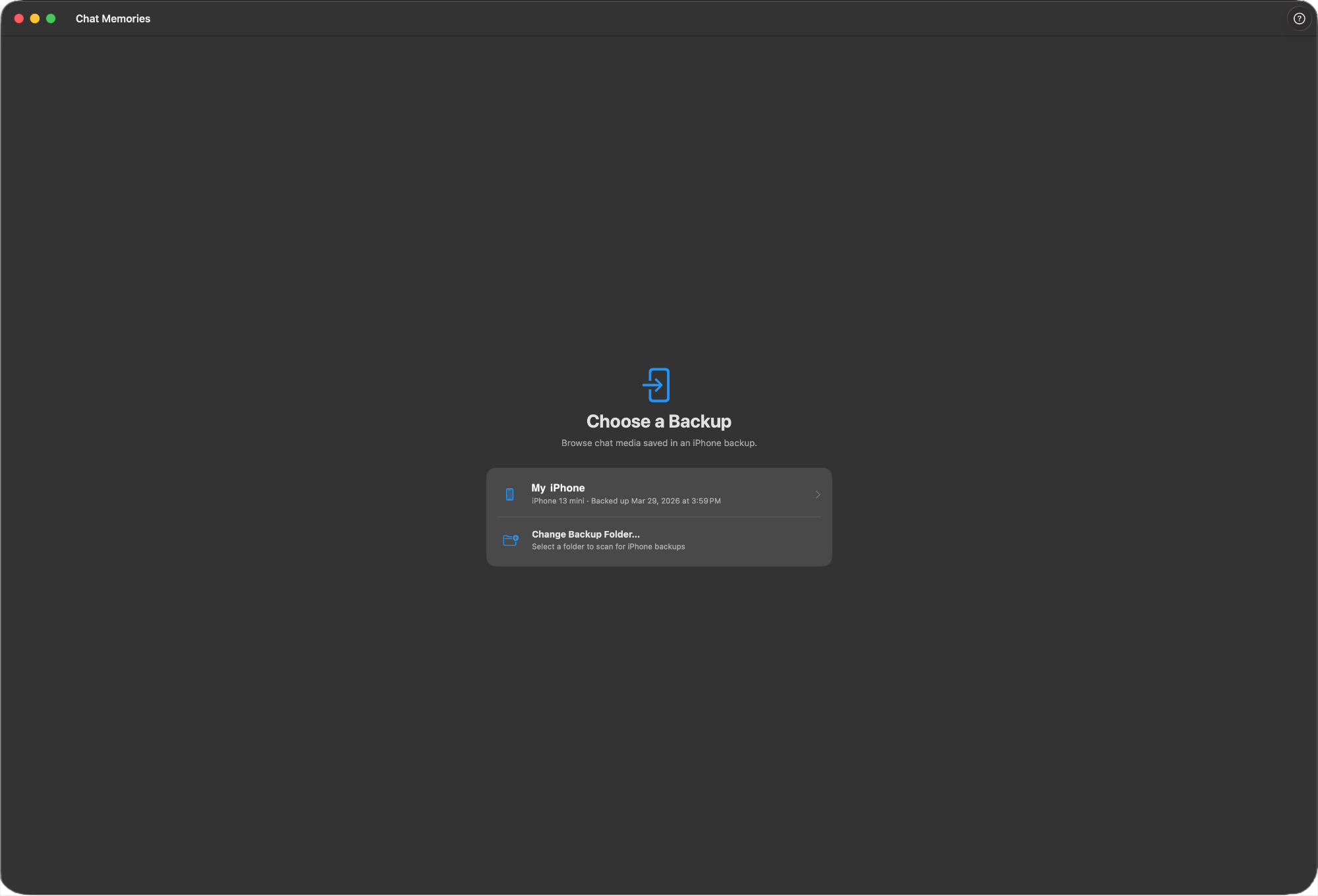
When you open Chat Memories, the first screen lets you select an iPhone backup. The app scans the default backup location automatically, so in most cases your backup will appear right away.
Steps
-
1Open Chat Memories
The app opens to the backup picker screen. If you've backed up your iPhone using Finder, your device should appear in the list automatically.
-
2Select your backup
Each row shows the device name, iOS version, and the date of the last backup. Click the backup you want to browse.
-
3Grant Contacts access (optional)
The app may ask for access to your Contacts. Granting this lets Chat Memories display real names instead of phone numbers in the chat list. You can skip this and grant it later from System Settings.
-
4Browse your chats
The sidebar shows all conversations that contain media, sorted by the number of items. Click any chat to see its photos and videos.
Encrypted backups
Backups created with encryption enabled appear in the list but are greyed out and cannot be selected. To use Chat Memories, create a new unencrypted backup in Finder. See How to create an iPhone backup for instructions.
Switching backups
To switch to a different backup, click Change Backup Folder… at the bottom of the backup list. Your current selection is remembered between app launches.