Chat Memories reads your media from a local iPhone backup stored on your Mac. Before opening the app, you need to create a backup using Finder. This only needs to be done once — or whenever you want to access newer photos and videos.
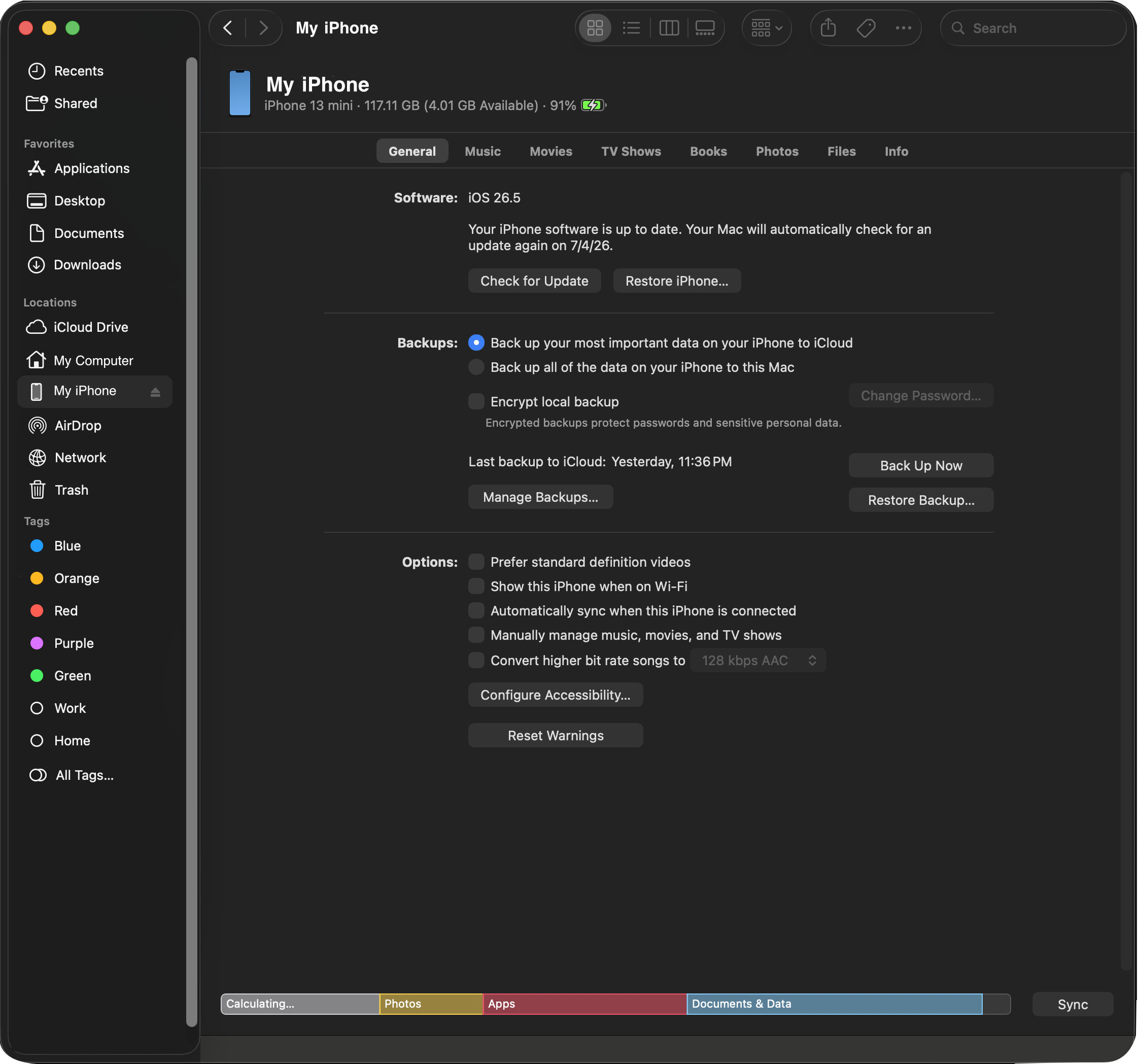
Steps
-
1Connect your iPhone to your Mac
Use a USB or USB-C cable. If prompted on your iPhone, tap Trust This Computer and enter your passcode.
-
2Open Finder
Your iPhone will appear in the Finder sidebar under Locations. Click it to open the device panel.
-
3Click "Back Up Now"
In the General tab, click Back Up Now. A progress bar will appear at the top of the Finder window while the backup runs.
-
4Choose an unencrypted backup
If prompted to encrypt, choose the unencrypted option. Chat Memories cannot read encrypted backups.
-
5Wait for the backup to complete
Backup time depends on how much data is on your phone. Most backups finish in a few minutes. Keep your iPhone connected until the progress bar disappears.
Why an unencrypted backup?
An unencrypted backup stores your files in a format the app can read directly. Your backup is saved only on your Mac — nothing is uploaded anywhere. We recommend avoiding unencrypted backups on shared or work computers.
Using iTunes instead of Finder?
If you're on macOS Mojave (10.14) or earlier, use iTunes instead of Finder. The steps are the same — connect your iPhone, select it in iTunes, and click Back Up Now in the Summary tab.