Your iMessage memories, finally accessible.
Browse, preview, and save every photo and video from your iPhone backups — without restoring your phone.
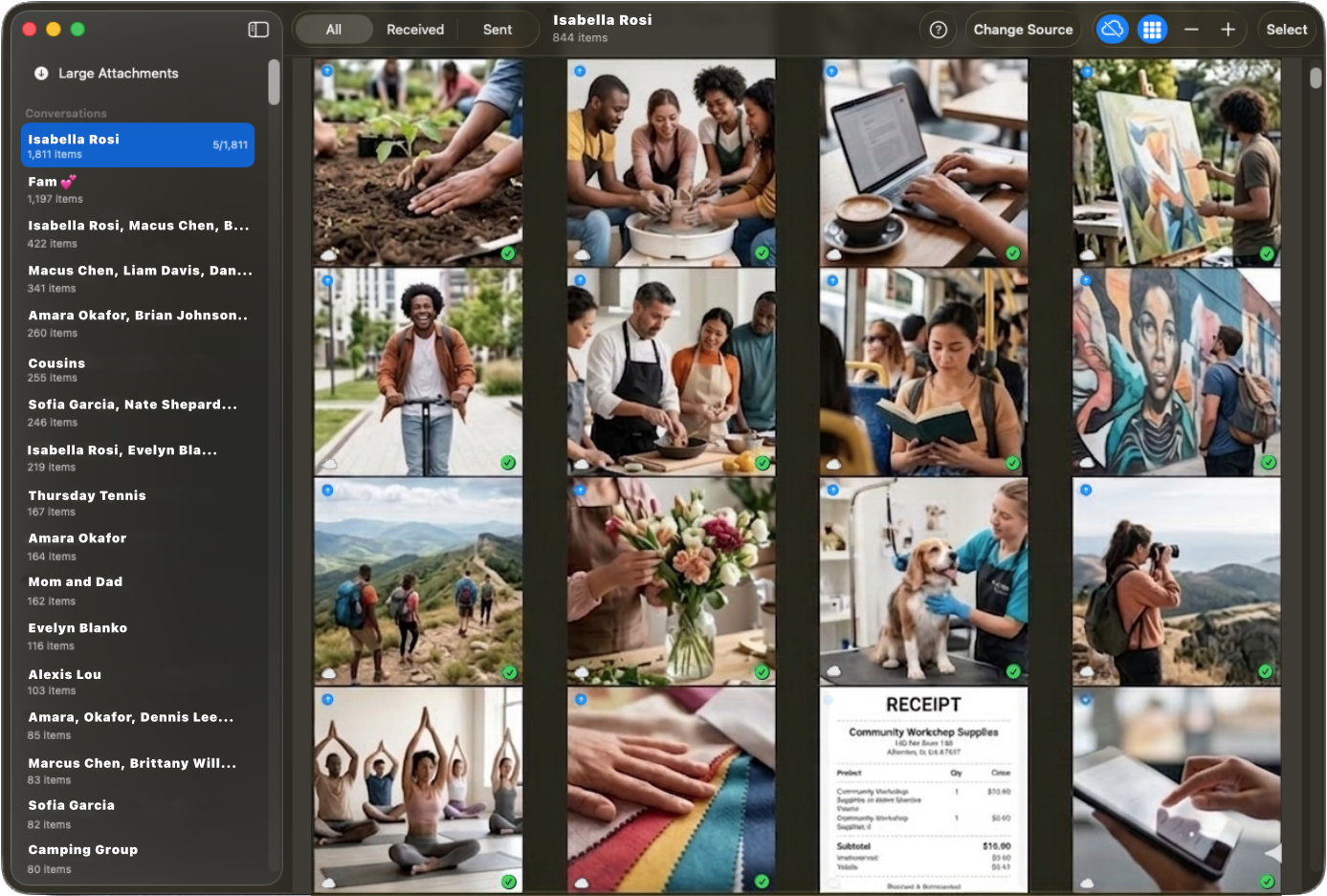
Browse, preview, and save every photo and video from your iPhone backups — without restoring your phone.
Works directly from your iTunes or Finder backups. No iCloud required. No phone needed.
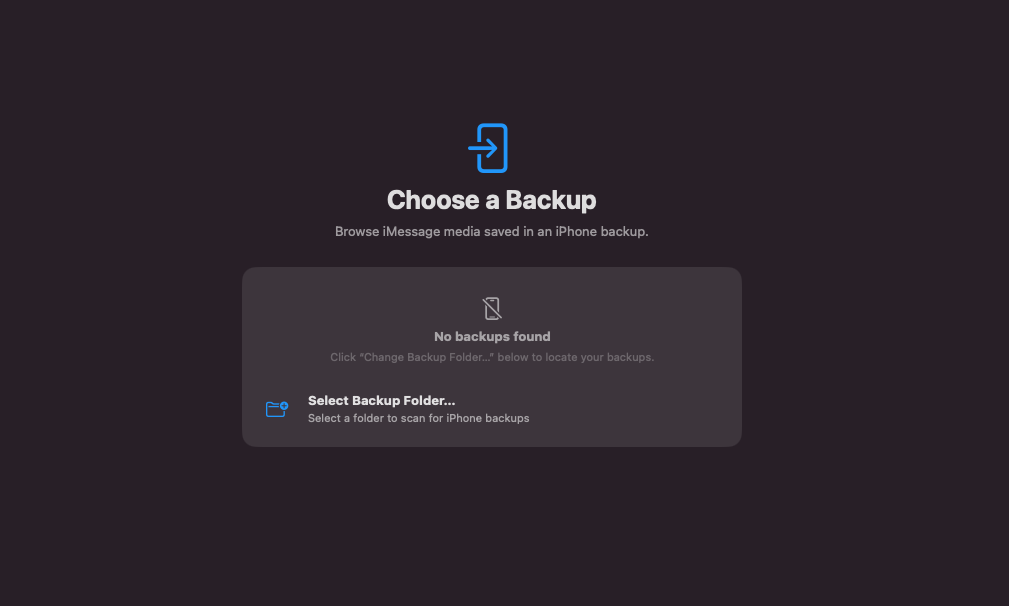
Point Chat Memories at your iPhone backup folder and it instantly finds all available backups. Works with backups made by iTunes or Finder on any Mac.*
* Backup must be unencrypted.
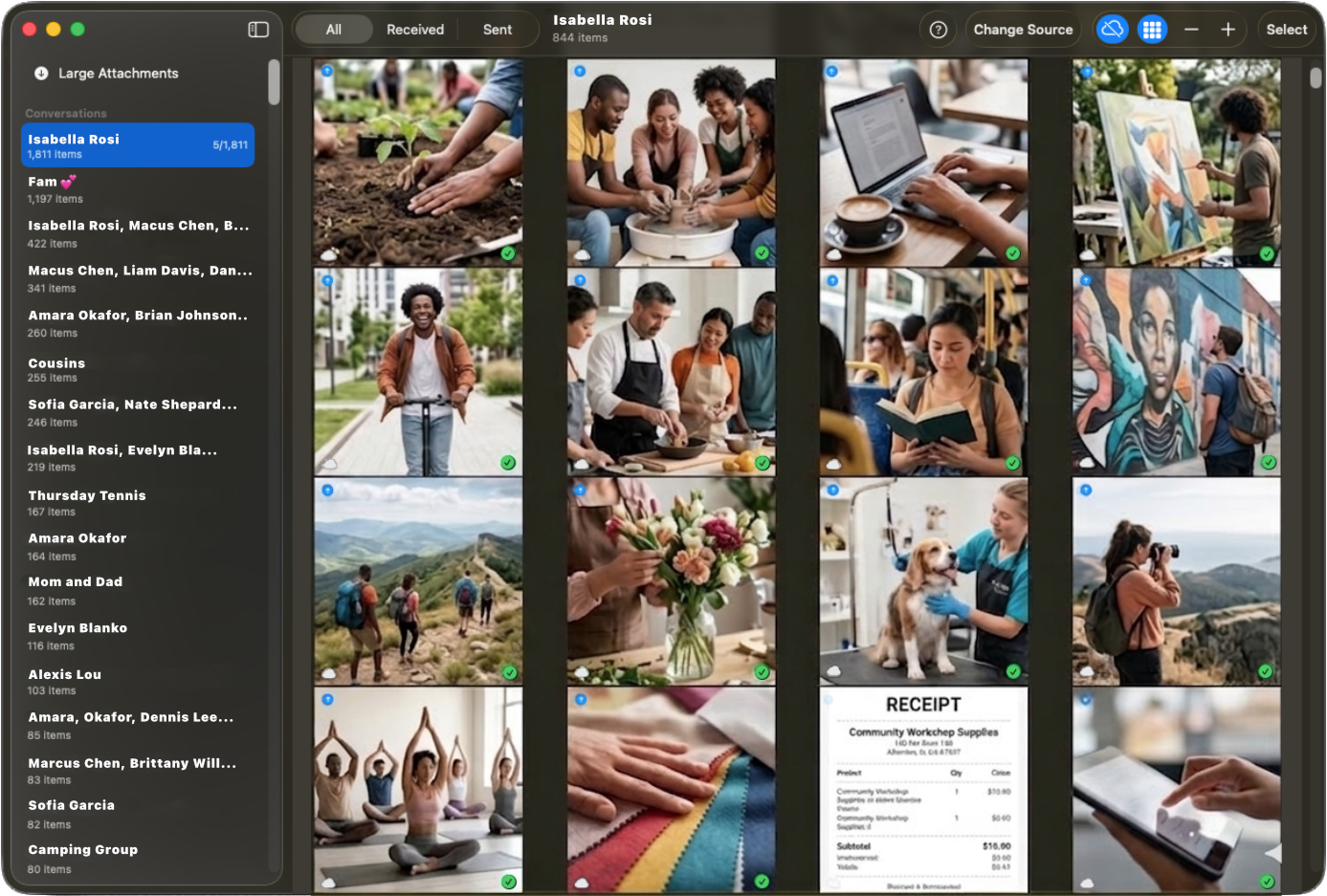
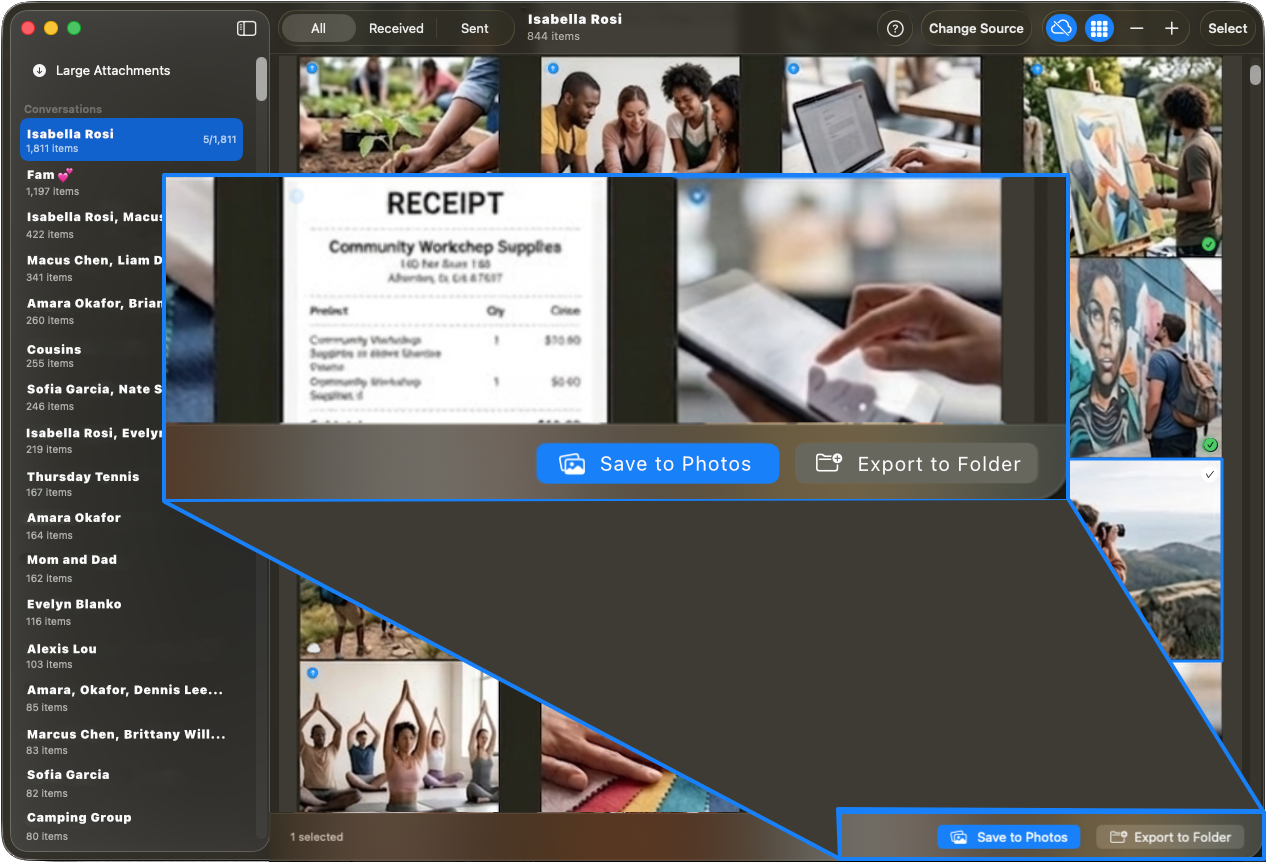
Every chat is listed in the sidebar with contact names resolved automatically. Tap into any conversation to see all its photos and videos in a fast, scrollable grid. Filter by sent or received, and adjust thumbnail size to your liking.
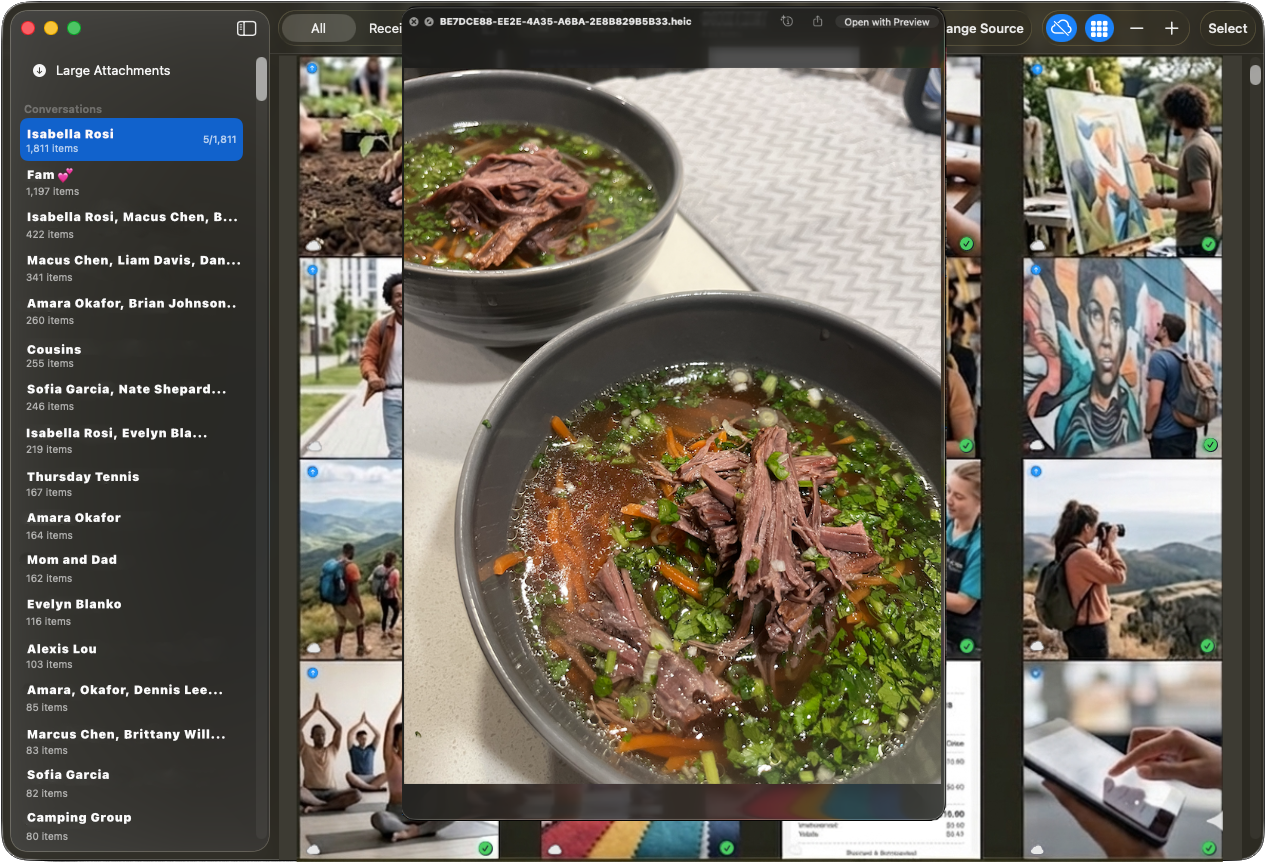
Double-click any photo or video to open a full-screen Quick Look preview. Watch videos, zoom into photos, and confirm exactly what you want to keep — all before saving a single file.
Select one item or hundreds at once. Save directly to your macOS Photos library, or export to any folder on your Mac. Downloaded items are tracked so you never save the same file twice.
No setup, no account, no cloud. Just your Mac and your backup.
Connect your iPhone to your Mac and create a backup using Finder (or iTunes on older Macs).
Launch Chat Memories and select your backup folder. Backups are detected automatically.
Browse by conversation or use the Large Attachments view to find your biggest files first.
Select items individually or in bulk, then save to Photos or export to any folder on your Mac.
Try it free, pay once to unlock everything. No subscription, ever.
Free tier: 5 downloads per day — no purchase required.
Apple keeps iMessage and Photos separate by design — media shared in a conversation stays in the Messages app unless you manually tap each item and choose "Save." In an active group chat that could mean hundreds of photos buried across months of messages, with no way to save them all at once. Chat Memories reads your iPhone backup directly and lets you save an entire conversation's media in a few clicks, without opening a single message.
Yes. The app is free to download — you can save up to 5 items per day at no cost. A one-time purchase unlocks unlimited downloads.
Yes — that's one of the main reasons we built it. Once you've saved your iMessage media with Chat Memories, you can safely delete it from your iPhone. Just make sure everything has downloaded successfully before removing anything.
Plug your iPhone into your Mac and open Finder. Select your iPhone from the left panel and click "Back Up Now." When prompted, choose the unencrypted option. Apple will ask you to unlock your device and the backup will begin.
An unencrypted backup allows the app to read your files and display your media. Your backup is stored locally on your Mac — only you have access to it. We don't recommend creating unencrypted backups on work or shared computers.
This permission lets the app display real names and group names from your contacts. It's optional, but makes navigating your chats much easier.
Photos and videos are saved using their original capture date, so they appear in the correct place on your Photos timeline. A new album is also created so you can easily find your recent additions.
Files are saved to the folder you choose, using their original capture date.
iMessage sometimes offloads media to iCloud — it appears on your phone but isn't physically stored on your device. This icon toggles those items on or off. Since the app reads your local backup, iCloud-only items cannot be downloaded.
Use this filter to find and save the media taking up the most space. Your iPhone has a similar view under Settings → General → iPhone Storage → Messages. Use both together to identify and back up the largest files before clearing them from your phone.